
Appearance
Links
Writing links
| Kind | Type |
|---|---|
| Inline | [text](https://example.com "title") |
| Reference | [text][id], with [id]: https://example.com elsewhere |
| Autolink | <https://example.com>, or a bare https://… or www.… |
| Wiki link | [[Page]], [[Page|label]] |
| HTML | <a href="https://example.com">text</a> |
Press Ctrl+K (Format ▸ Hyperlink) to link the selection. Paragraph ▸ Link Reference adds a reference definition.
Clicking a link
Settings ▸ Control ▸ Live Preview ▸ Clicking a Link chooses what a click does:
- Edit, ⌘-Click to Open (the default): a click edits the link. ⌘-click, or Ctrl+click on Windows and Linux, opens it.
- Open, ⌘-Click to Edit: the reverse.
Clicking a footnote reference scrolls to its definition.
The link toolbar
Rest the pointer on a link and a toolbar appears, with Open, a menu of where to open it, the destination to edit, and Copy Link.
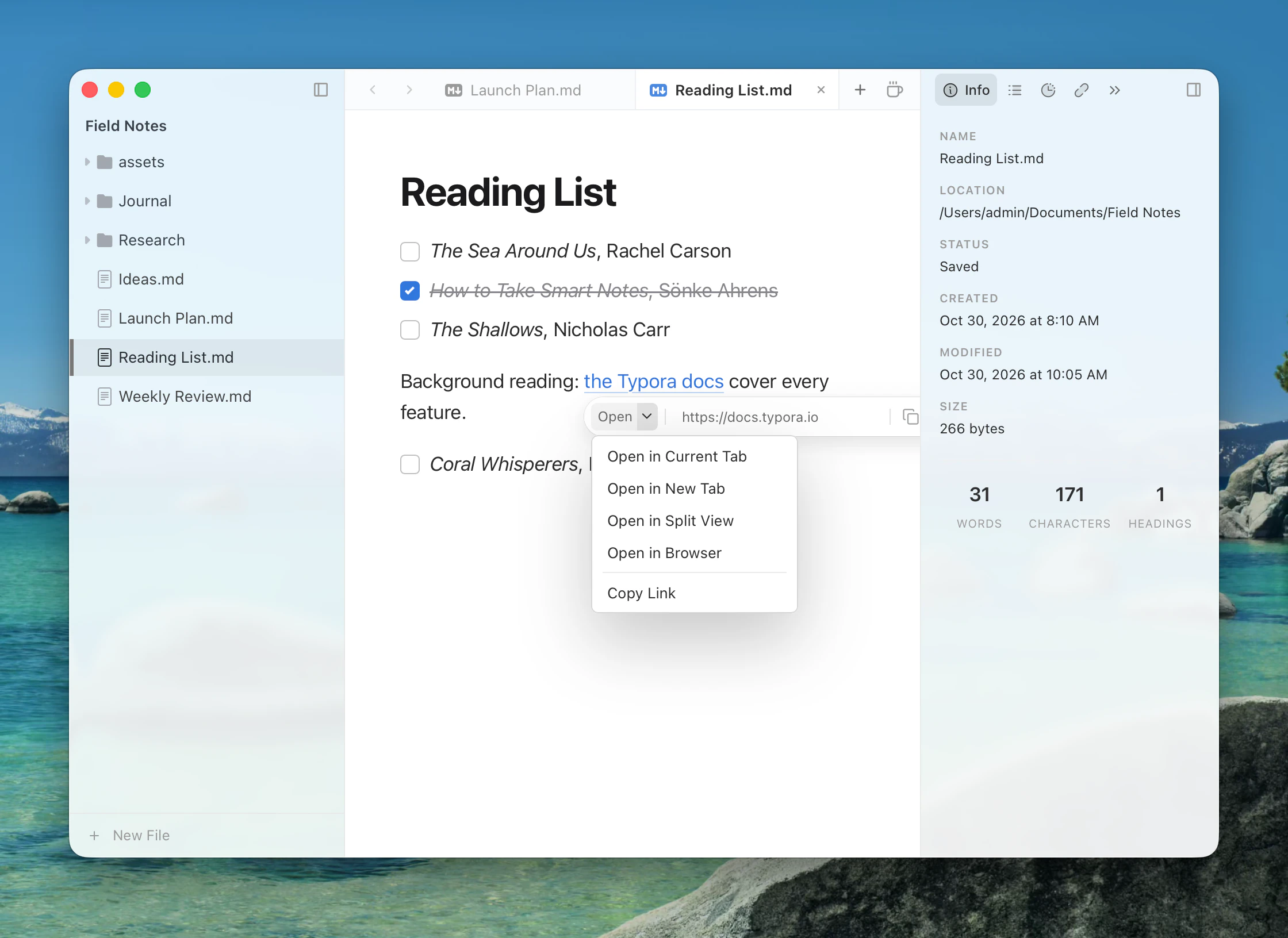
See Web pages for what the menu offers.
Links to files
A link can point to a file by relative or absolute path, or as a file:// URL. Typora completes paths as you type a link's destination.
A document's typora-root-url in front matter sets the base for absolute paths such as /assets/a.png.
Links to headings
Link to a heading in the same document with # and the heading's text, in lower case with hyphens for spaces:
markdown
[See the rollout](#rollout)If two headings have the same text, the second is #rollout-2.
A link to a heading in another file, such as other.md#rollout or [[Other#Rollout]], opens that file at the top.
Wiki links
[[Page]] links to another Markdown file. A target without an extension gets .md. Wiki links are on by default; turn them off with Settings ▸ Markdown ▸ Syntax ▸ Wiki Links. ![[image.png|300]] embeds an image, and ![[Note]] shows a card for another document.
Allowed destinations
Typora opens http, https, mailto, tel, ftp and file links.