
Appearance
Extensions
Extensions add things to Typora: diagram languages such as PlantUML and Graphviz, charts and kanban boards in code blocks, views in the detail panel, viewers for other file types, TeX macros, templates, commands and more.
Every extension runs in a sandbox. Opening a document never runs extension code on its own, and an extension can only reach the network, your documents, your files or the clipboard if it asks and you allow it.
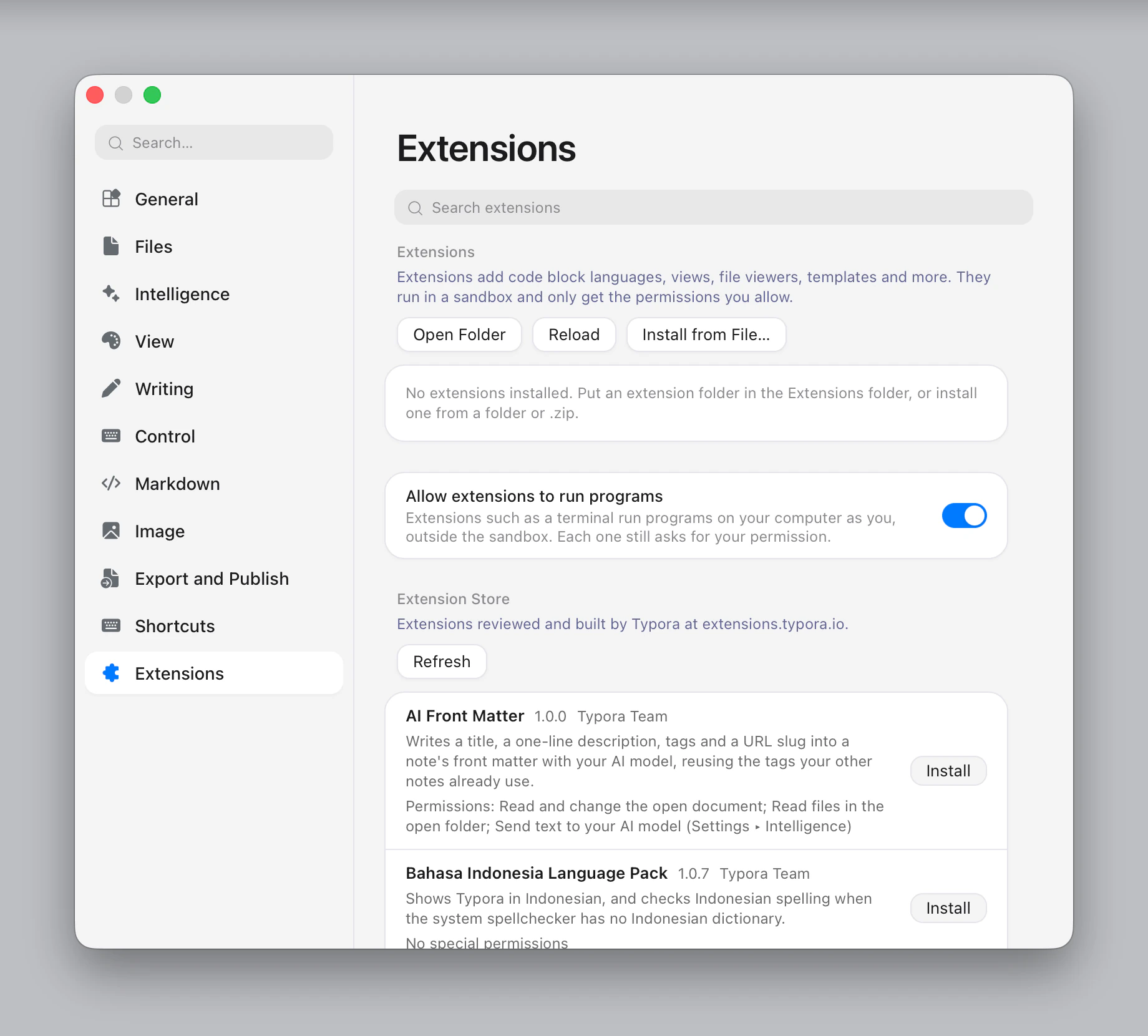
Manage extensions in Settings ▸ Extensions.
Installing from the store
The extension store lists extensions that Typora has reviewed and built from public source.
- Open Settings ▸ Extensions.
- Type in Search extensions — it searches both your installed extensions and the store.
- Click Install on a store entry. Each entry shows what the extension asks for, or No special permissions.
When a newer version is in the store, the installed extension shows Update to x.y.z, and Update All updates everything at once.
You can also browse the store on the web at extensions.typora.io. A link such as typora://extension/<id> opens the extension in Typora and asks before installing it.
Suggestions
Typora suggests a few hand-picked extensions when what you type names one: terminal in the command palette, or /d2 in a document. They come last in the list, marked Install Extension. Picking one opens Settings ▸ Extensions, which shows what the extension can do and asks before installing it.
What you type is matched on your device against a list that ships with Typora, and is never sent anywhere. To turn suggestions off, use Settings ▸ Extensions ▸ Suggest extensions.
Installing from a file
To install an extension you downloaded or wrote yourself:
- Open Settings ▸ Extensions.
- Click Install from File… and choose the extension's folder or
.typora-extensionfile.
On macOS and Linux you can also open a .typora-extension file directly (double-click it, or drop it on Typora's icon): Typora opens Settings ▸ Extensions and asks before installing it.
Typora copies it into its Extensions folder (Open Folder shows you where). Extensions installed this way run in the same sandbox, with the same permission prompts, but have not been reviewed by Typora — install them only from people you trust.
Permissions
Extensions that only add data — templates, snippets, macros, input rules, offline renderers — need no permissions. Others ask for some of:
| The dialog says | Which means |
|---|---|
| Connect to https://… | It can send requests to those servers. For diagram extensions, the diagram source is sent there to be drawn. |
| Connect to the server you enter in “Site URL” | It can send requests to the server you type into that option, and nowhere while it is empty. |
| Read the open document | It can read the document you are editing. |
| Read and change the open document | It can also edit it. |
| Read files in the open folder | It can list and read files in the folder open in the sidebar. |
| Read and write the clipboard | It can read and set clipboard text. |
| Send text to your AI model (Settings ▸ Intelligence) | It can ask the model you set up for AI features, sending the text it chooses — usually from your document. It never sees your API key. |
| Run any program on your computer, including your shell | It can start programs as you — a terminal, for example. |
| Run git, pandoc… | It can start those commands. |
| Run the programs it comes with | It ships its own programs and can start them. |
An extension that asks for anything is installed but stays inactive, marked Needs your permission, until you click Review Permissions… and Allow. If it can both read your document and use the network, the dialog warns you that it could send your text elsewhere.
If an update asks for more than you allowed before, the extension stops running until you review and allow the new permissions.
Extensions that run programs
Programs an extension starts are not limited by Typora: they run as you, and can read and change any of your files and use the network, like anything you start in a terminal. So each one asks you separately, like any other permission, and its dialog warns that its programs act as you.
To stop all of them at once, turn off Settings ▸ Extensions ▸ Allow extensions to run programs (on by default). While it is off, such extensions are marked Needs “Allow extensions to run programs” and don't run.
Only allow extensions you trust. Programs an extension started in a window end when you close the window, switch the extension off, or quit Typora.
No extension can otherwise read files outside the open folder, or change your Typora settings.
Turning extensions on and off
Each installed extension has a switch. Turning it off removes everything it added immediately; turning it back on restores it. Click an extension's name to see:
- its id, author and repository;
- Adds — what it contributes (code block languages, views, commands, templates…);
- Permissions — what it may do;
- its settings, if it has any;
- a Log, useful when something doesn't work;
- Show in Folder and Uninstall.
Extension settings
Extensions with options show them when you expand their row — for example the server a diagram extension uses, or a daily word goal. Changes apply immediately.
Uninstalling
Expand the extension and click Uninstall. Its folder is moved to the trash and the data it stored is deleted.
Where extensions show up
| An extension that adds… | Appears in |
|---|---|
| Code block languages | Fenced code blocks with that language, e.g. ```plantuml — rendered like built-in diagrams, and in exports |
| Detail views | New tabs in the detail panel |
| File viewers | Files of that type open in a viewer tab |
| Commands | The command palette, the / menu, the editor's context menu, and key bindings |
| Templates and snippets | File ▸ New from Template, the snippet list, the / menu — grouped under the extension's name |
| Inline rules | Highlighted text, such as #123 or #tag, that you ⌘-click (Ctrl-click) |
| TeX macros | Every math formula |
When something goes wrong
- An extension with a broken manifest is marked Invalid, with the reason listed in its row.
- Errors are written to the extension's Log.
- Reload restarts all extensions from disk.
typora export --no-extensionsexports without any installed extensions.
Building your own
Most extensions are a single JSON file. See Building Extensions.