
Appearance
License and Activation
During the beta, you need a license to use Typora 2. Stable versions come with a 15-day free trial. See Purchase to buy a license.
First run
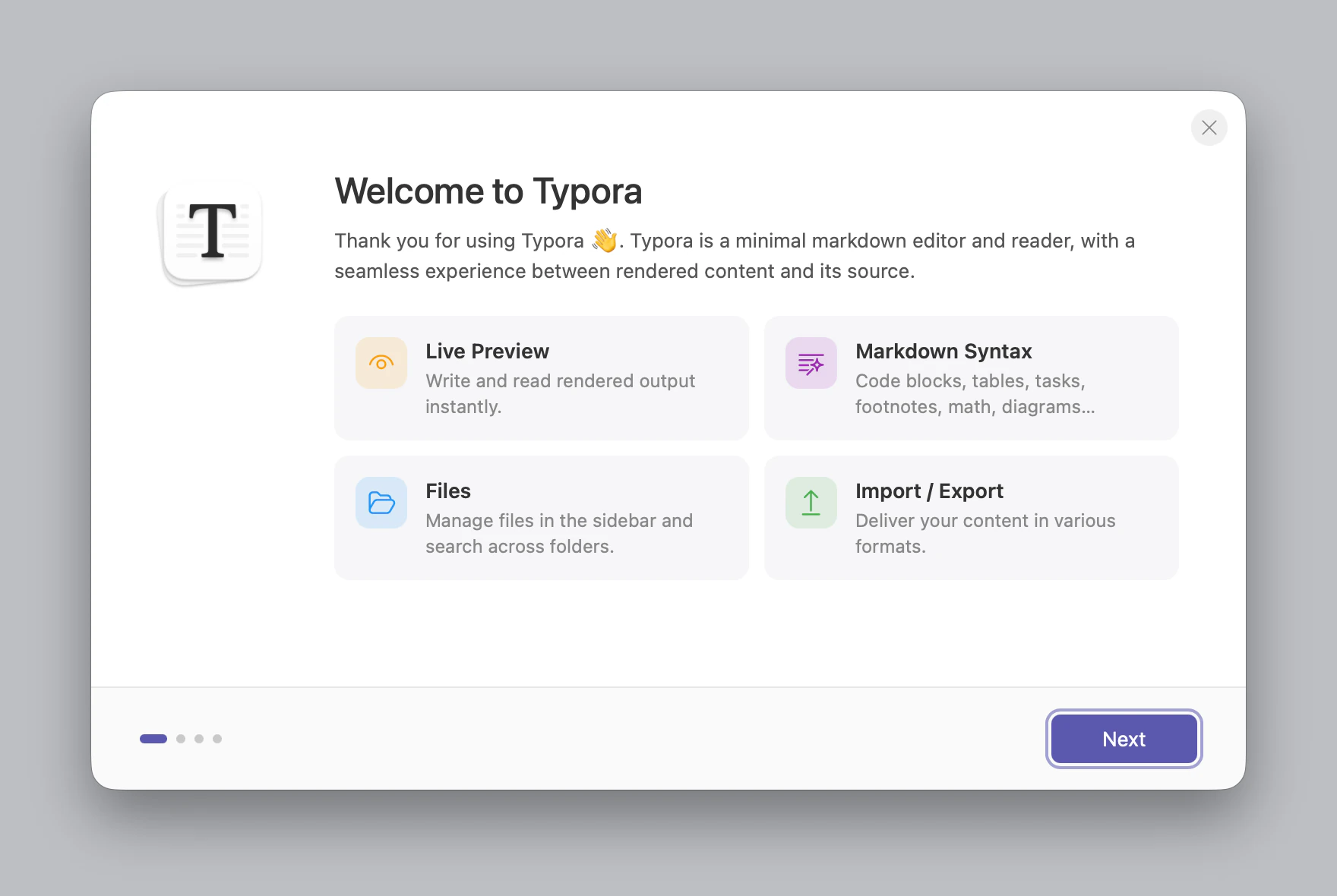
The first time you open Typora, a short welcome shows what's new and where to start, and ends at Activate Typora. Press Not Now to skip it. Help ▸ Welcome shows it again.
Activating
Open Help ▸ My License…, or Settings ▸ General ▸ License ▸ Register…, or click the UNREGISTERED pill in the title bar. Enter your email address twice and your license code, then click Activate.
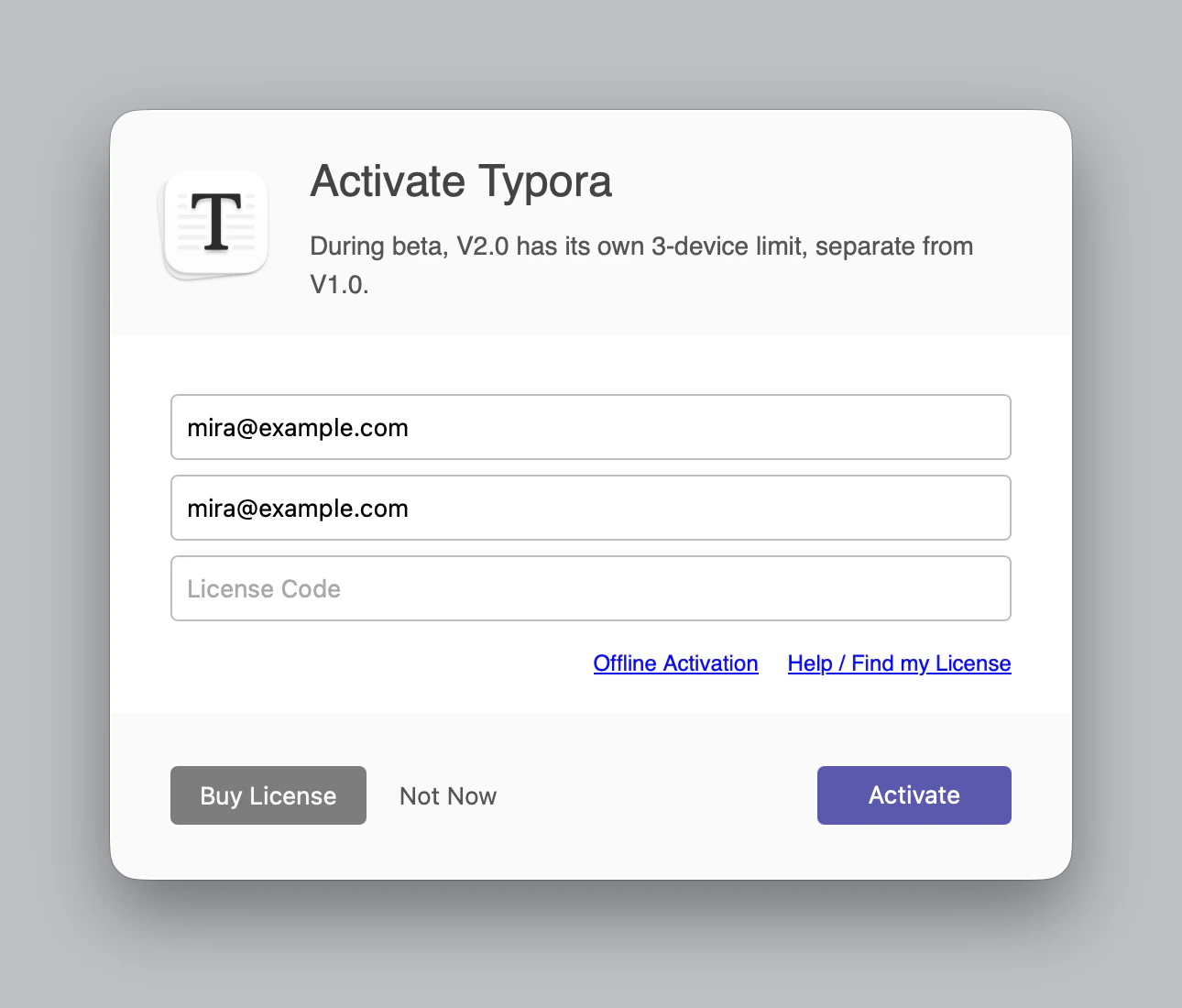
Activation needs an internet connection to reach store.typora.io. After you first use a license code, always activate it with the same email address.
Offline activation
For a computer that can't reach the store:
- Click Offline Activation and copy the Machine Code.
- On another device, open store.typora.io/offline and get an activation token.
- Paste it into Activation Token and click Activate.
An activation token takes up one of your devices for at least six months, because the store can't tell whether an offline device is still in use.
Finding your license
- By the email you bought it with: your license code was emailed to you after purchase. Check your spam folder too.
- By the email you activated with: open store.typora.io/my and enter that address. You'll receive a link to a page with your license code and activated devices.
Devices
During the beta, Typora 2 has its own limit of three devices, separate from Typora 1. Activating on a fourth asks you to confirm: Continue Activation unregisters your oldest Typora 2 device. Your Typora 1 devices aren't affected.
Without a license
During the beta, Typora 2 needs a license. Until you activate one, only the document you have open works: opening a new tab or window, a split view, or the detail panel asks you to register, and only the first tab is restored when you start Typora.
Deactivating
To free up a device, open Help ▸ My License…, click Deactivate and confirm. The same window shows the email address and license code registered on this computer.
If you can't reach the device, deactivate it from store.typora.io/my.
If activation fails
- Email address confirmation does not match. The two email fields differ.
- Please enter a valid license code. Check the code against your purchase email.
- This license belongs to a different email address. A license code stays with the email address it was first activated with. If you entered the wrong one by accident, contact hi@typora.io.
- Could not activate. Please check your connection and try again. Check that you can reach store.typora.io, and check your firewall, VPN or proxy. You can also try offline activation.
- Typora stopped being activated. Confirming activation on a fourth device unregisters the oldest one. Different user accounts, operating systems and virtual machines on one computer count as separate devices.
Need more than three devices at once? Buy another license.
For anything else, email hi@typora.io with the email address and license code you used.