
Appearance
Detail Panel
The detail panel on the right shows information about the current document. Toggle it with the button at the top right of the window or View ▸ Toggle Detail Panel, and open any tab directly from the View menu.
| Tab | Shows |
|---|---|
| Info | File details and counts |
| Outline | The document's headings |
| History | Earlier versions of the file |
| Attachment | Links, files and images the document uses |
| References | The works the document cites |
| Spelling | Misspelled words |
| Chat | Your AI model |
| Views | Tabs from AI and extensions |
Arranging the tabs
Drag a tab along the strip to reorder it. When there are more than five tabs, the first four show and the rest go in the » menu. Settings ▸ View ▸ Detail Panel reorders tabs too, and turns off the ones you don't use. At least one stays on.
Info
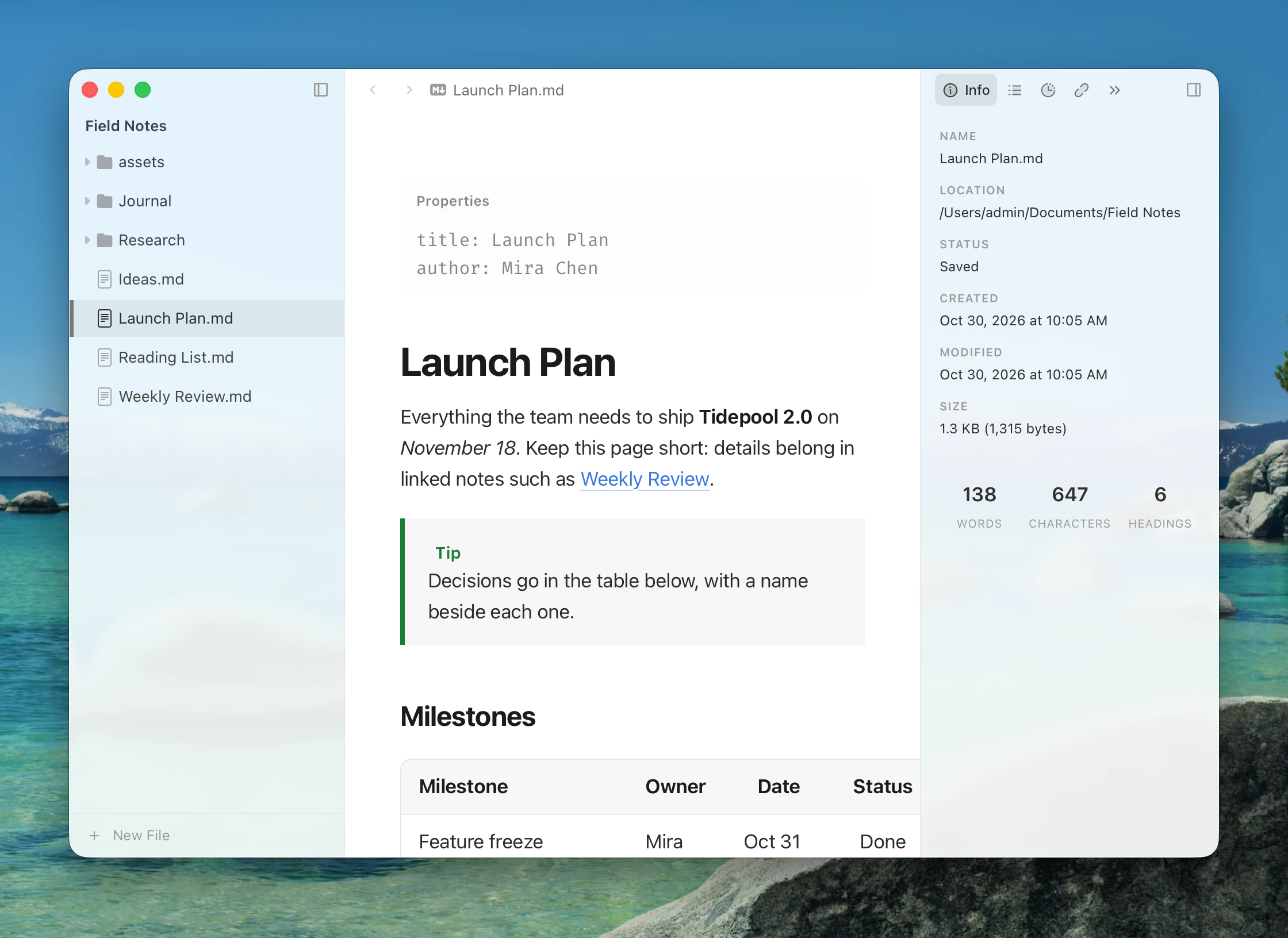
Info shows the file's name, location and status (Saved, Unsaved changes or Not saved), when it was created and modified, and its size. Below that are the document's word, character and heading counts. Click a value to copy it.
For lines, reading time and the count of your selection, see Word count.
Outline
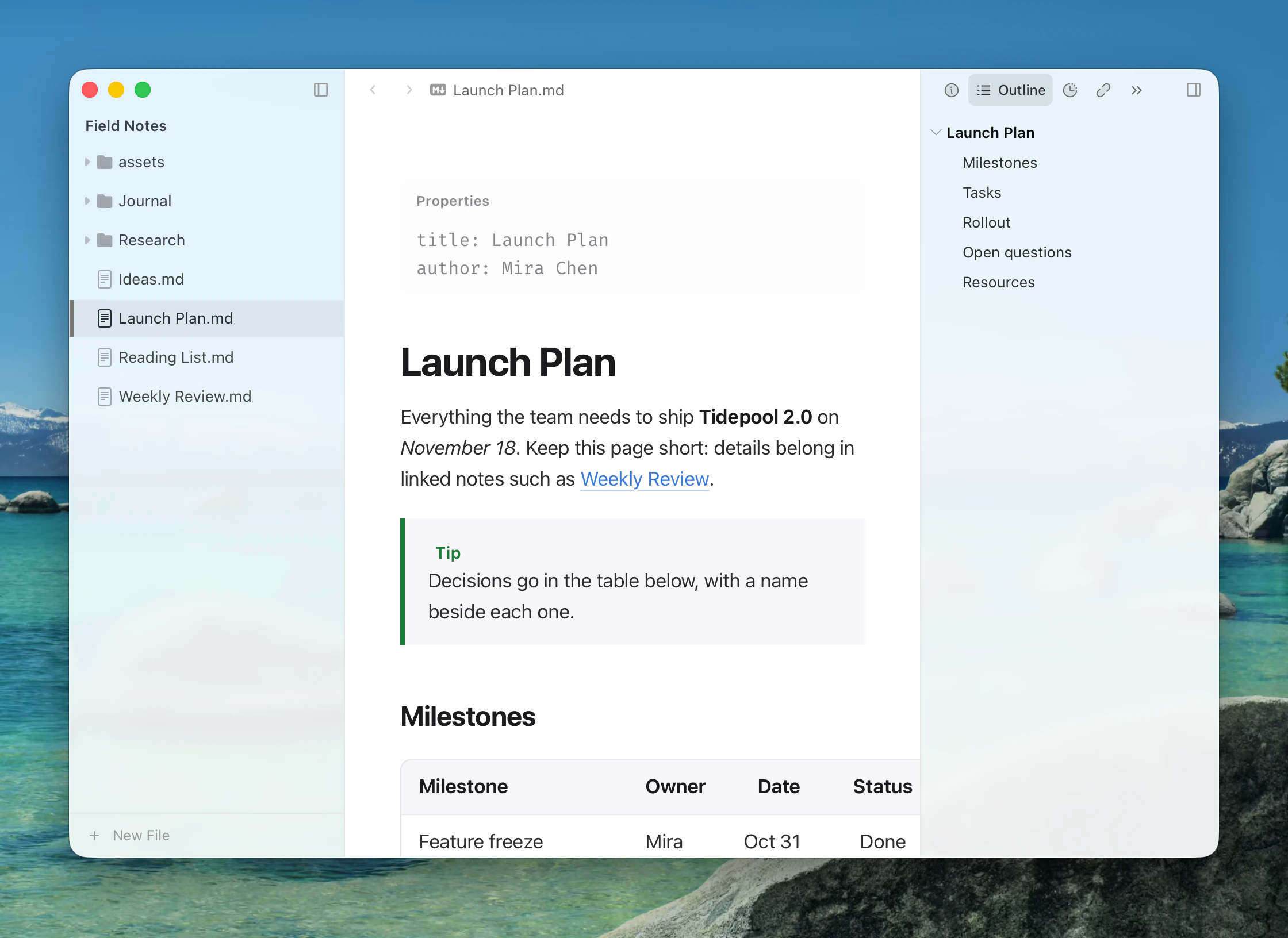
Outline (Mod+Shift+1) lists the document's headings and marks the one you are in. Click a heading to jump there, or the arrow beside it to fold its sub-headings.
Drag a heading to move its whole section; see Moving blocks.
History
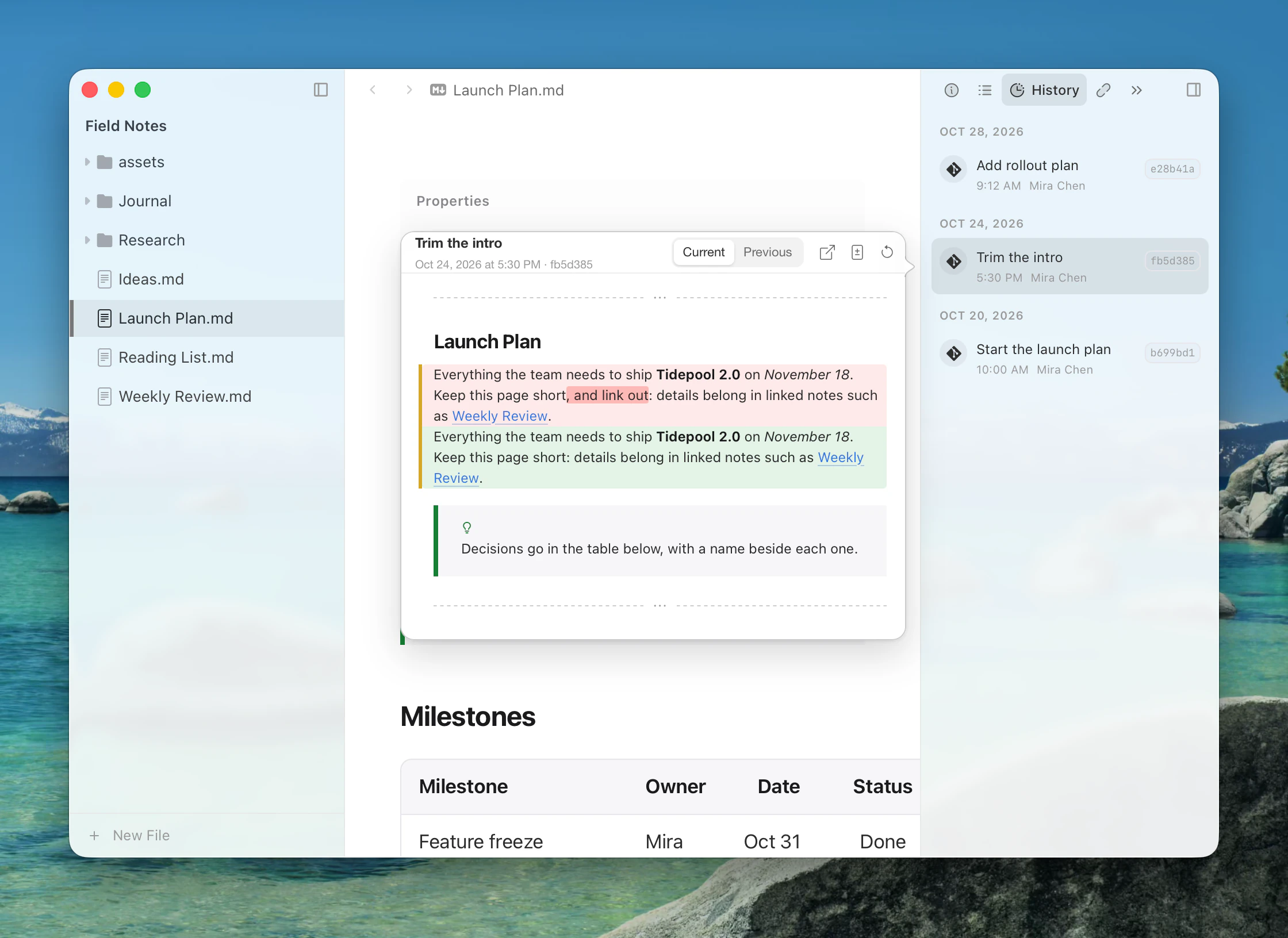
History shows earlier versions of the saved file in one timeline:
- Git commits that touched the file, on every platform, when it is in a Git repository.
- On macOS, also Time Machine and document versions.
Hover a version to preview what changed, compared with the current text or with the previous version, in a unified or side-by-side layout. For each version you can:
- Open in New Tab — read-only.
- Open Diff View — the full comparison.
- Restore to This Version — writes the old version next to the original as
name-N.mdand opens it. Your current file is never overwritten.
Unsaved documents have no history yet.
Attachment
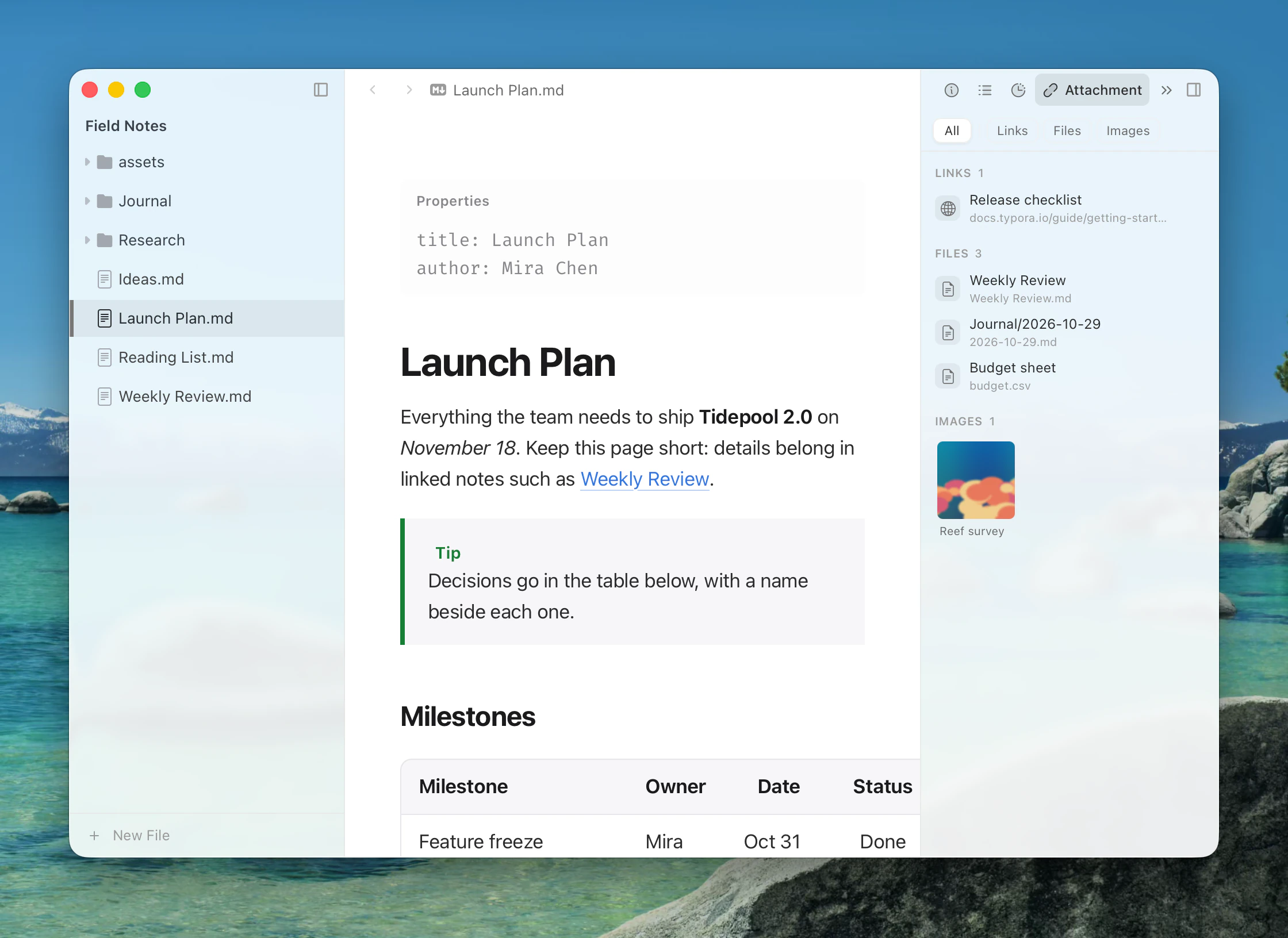
Attachment lists every link, file and image in the document. The strip at the top narrows it to Links, Files or Images. Click an entry to scroll to its next use in the document and outline it. An image also opens in the image viewer.
Drop a file on this tab to add it to the document: it is copied to your image folder and linked at the cursor. See Dragging files.
References
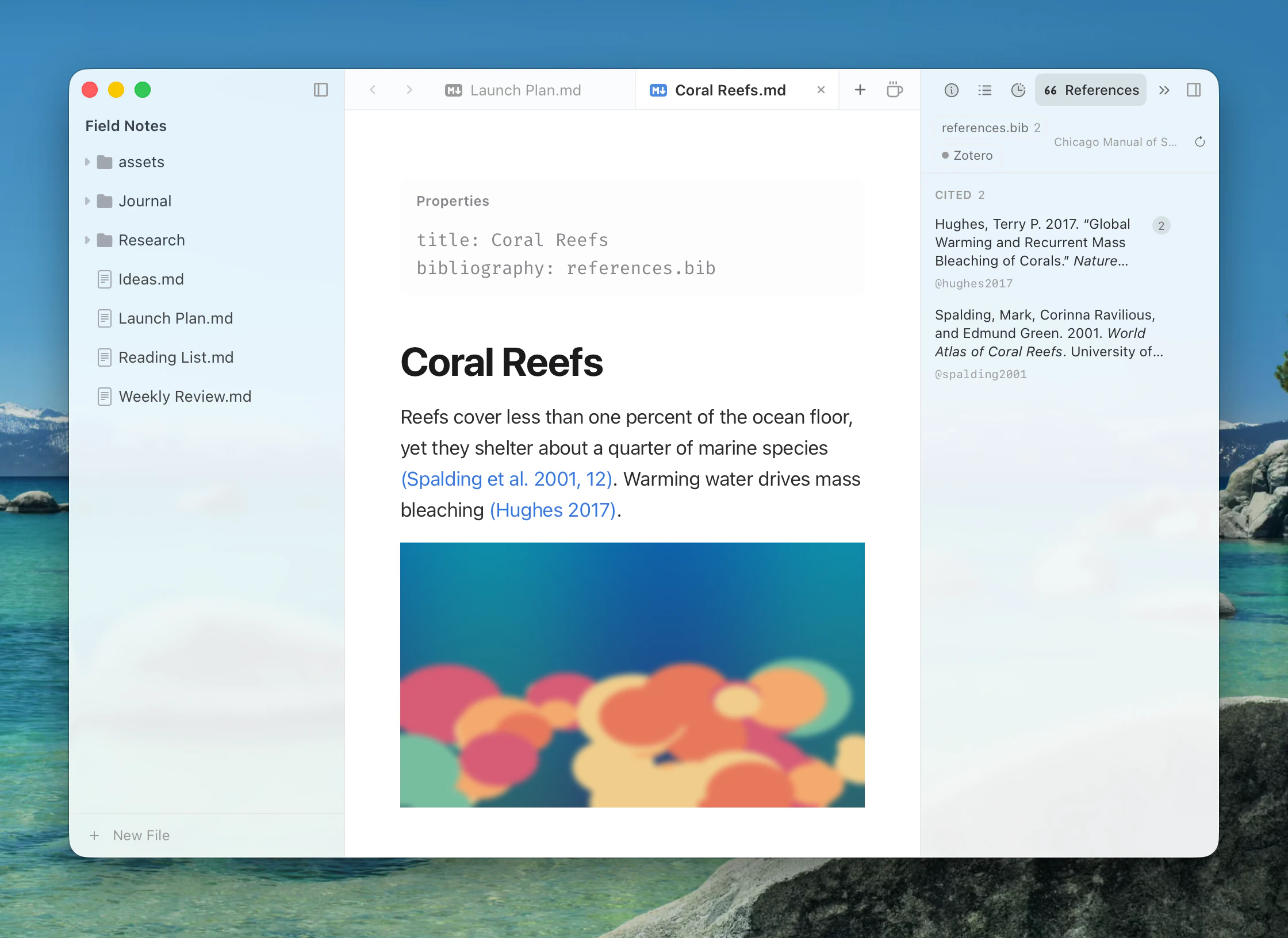
References shows the works the document cites, with each one's formatted entry, its key and how many times it is cited. Keys with no bibliography entry are listed under Not Found.
Chips at the top show where entries come from: bibliography files, the front matter, and Zotero when it is running. See The References tab.
Spelling
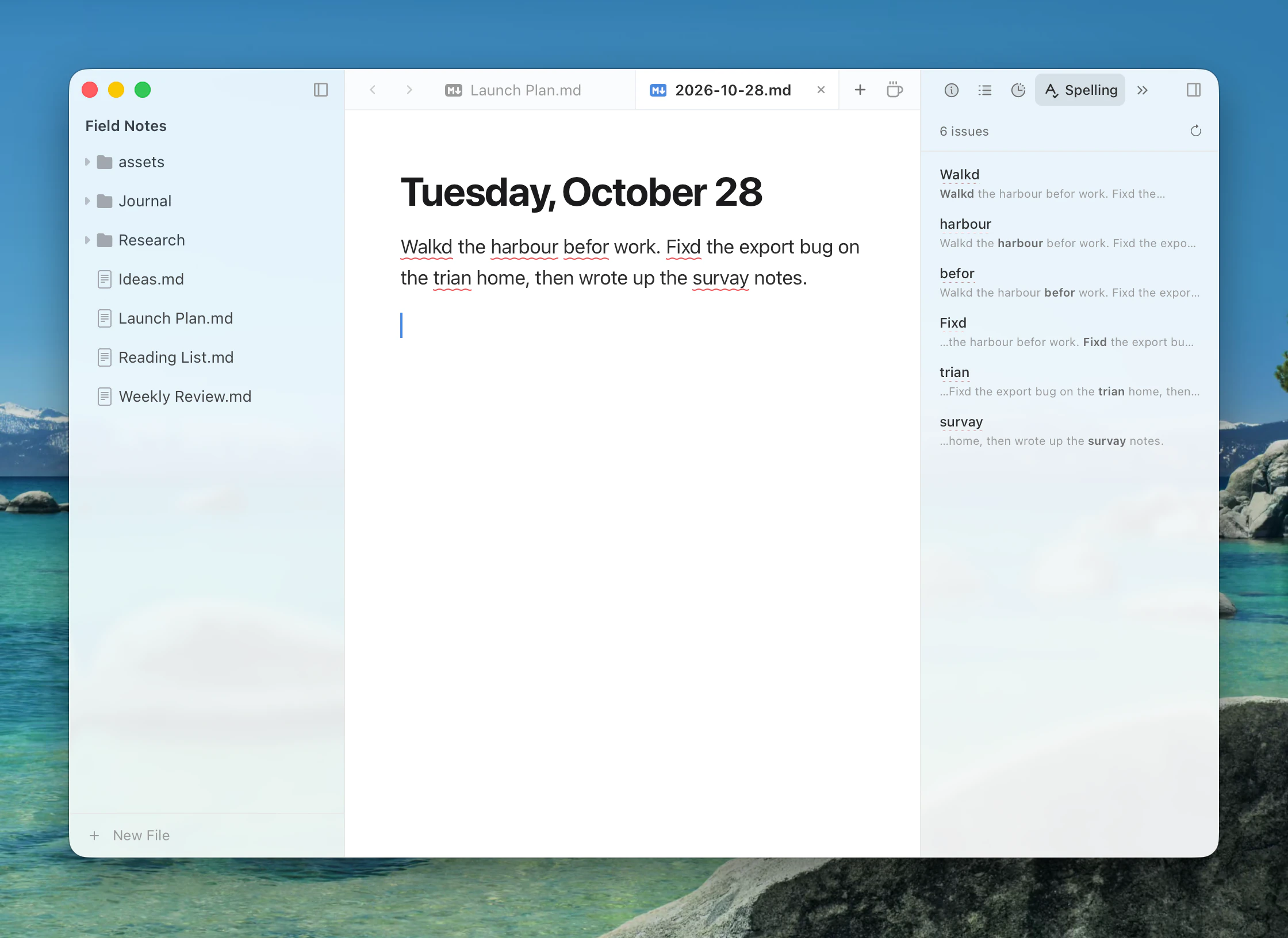
Spelling lists the misspelled words in the document. Click one to go to it. Check Document Now runs the check again, or for the first time if checking while you type is off. Settings ▸ Writing ▸ Spelling sets the options.
Chat
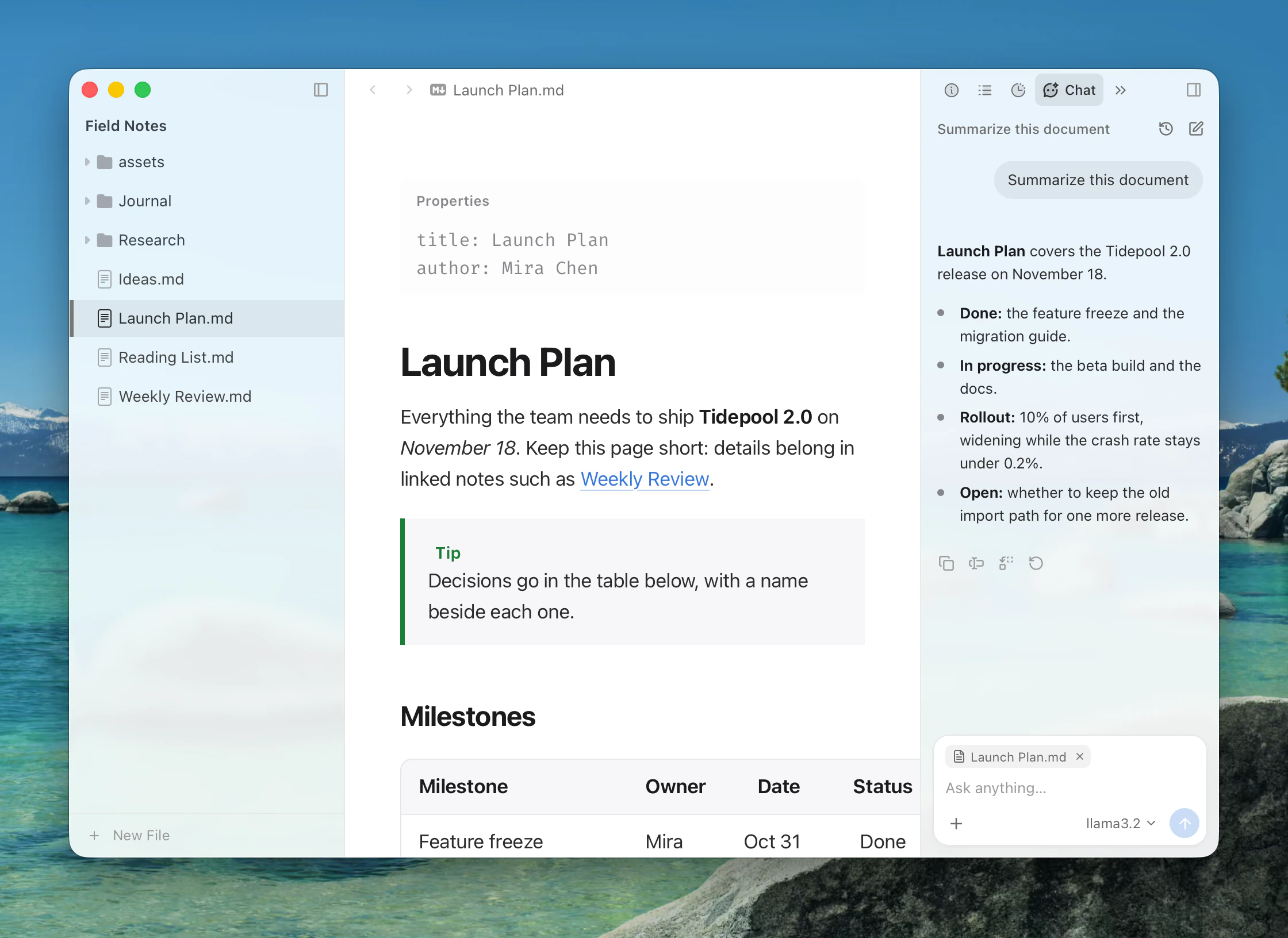
Chat talks to your AI model about the document. It may be under » until you move it forward, and it is hidden while AI is off. See AI.
Views from AI and extensions
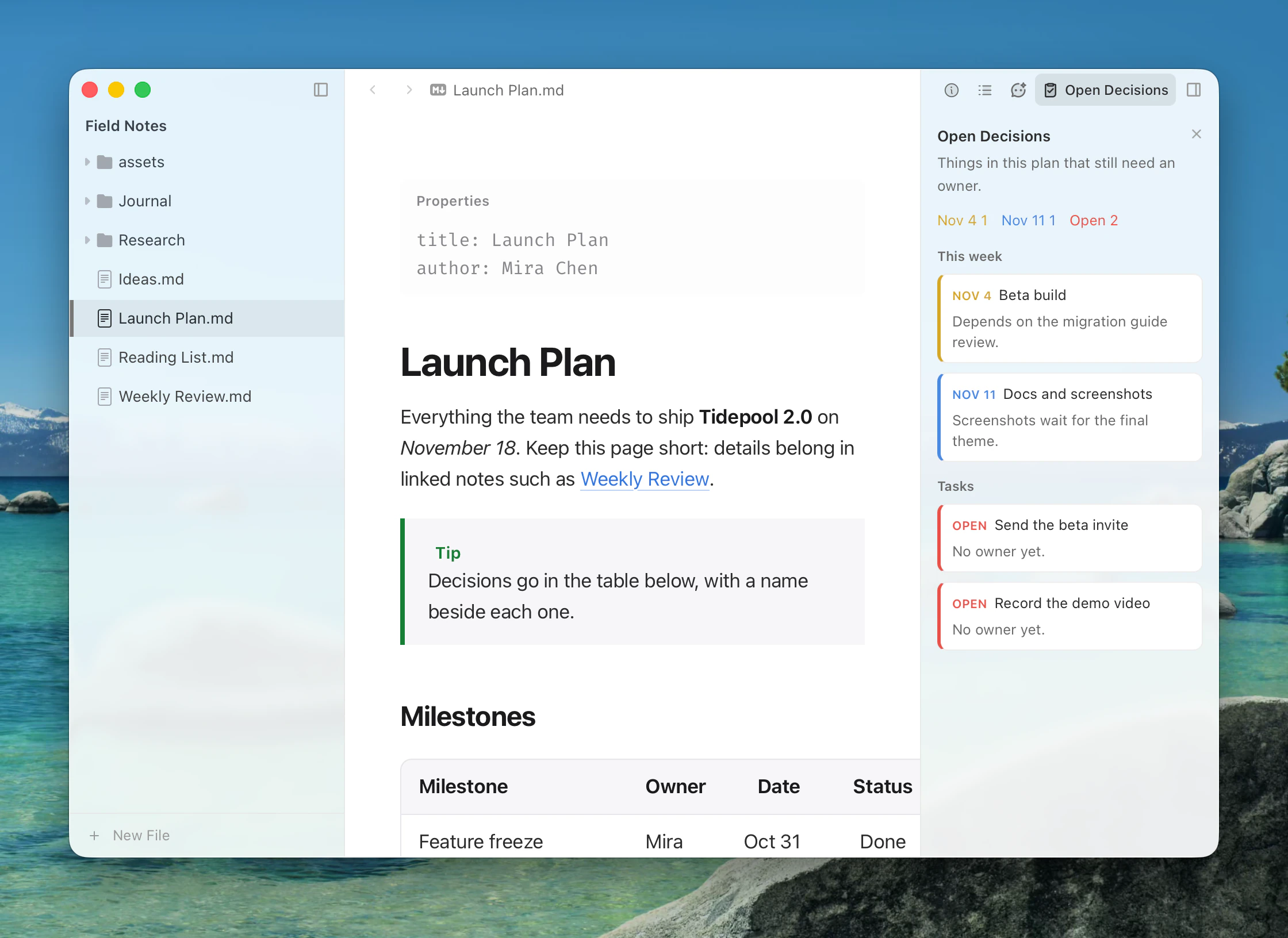
The chat can show its answer as a view, which opens as a tab named after it. Choose Keep as a Detail Panel Tab to keep a view that lists things from the document.
Extensions can add tabs too, such as Open Tasks or Tags.