
Appearance
Agents and MCP
Coding agents and Typora work together in two directions: an agent can be the model behind Typora's AI features, and an agent running on its own can read and edit what is open in Typora. Either way, a change to your document reaches it only after you review it.
Coding agents as a model
Add Claude Code, Codex or OpenCode in Settings ▸ Intelligence ▸ Model Providers ▸ Add ▸ Coding Agents. Typora finds the installed command and runs it under its own sign-in, so you enter no API key. If it isn't found, install it and click Look Again on its page, or enter the Command yourself. Leave Model empty to use the agent's own default.
By default the agent has no tools: it runs in an empty temporary folder and only sees the prompt Typora sends. Document edits come back as the usual diff card in Chat.
Use Its Own Tools
Claude Code and Codex have a Use Its Own Tools option, off by default. With it on, the agent works in the document's folder with its own tools and your permission settings for it, and it uses Typora's tools through MCP. What it would ask you in a terminal, Typora asks instead. Document edits still go through review. OpenCode doesn't have this option.
External agents
The typora command gives an agent running in a terminal the same view you have: the live text with unsaved changes, and your selection. It proposes changes, and you decide in Typora.
sh
typora status                      # *M 3f1c…  /notes/plan.md  (lines 12-14 selected)
typora read --selection            # what you selected, as Markdown
typora read plan.md --json         # text, revision, selection and outline
typora edit plan.md --old "teh" --new "the" --from "Claude Code"
cat new.md | typora edit plan.md --content - --message "Restructured section 2"
typora edit plan.md --image ./fox.png --alt "A fox in the snow"| Command | What it does |
|---|---|
typora status | Lists the documents open in the frontmost window: which is active, which has unsaved changes, its revision and selected lines. --json prints JSON. |
typora read [file] | Prints a document as it is in Typora, unsaved changes included. Without a file, the active document. A file that isn't open is read from disk. --selection prints only the selection; --json adds the revision, selection and outline. |
typora edit [file] <change> | Proposes a change and waits for your decision. |
Proposing a change
typora edit takes one kind of change:
| Option | Change |
|---|---|
--old <text> --new <text> | Replace text. Repeatable; each old text must occur exactly once. |
--edits <file|-> | A JSON array of {"old": …, "new": …} |
--content <file|-> | The whole new document |
--insert <text|-> | Insert after the selection, or at the caret |
--image <file> | Insert an image there, with --alt for its description |
Other options: --revision <rev> refuses the change if the document has moved on since that revision (from status or read --json), so the agent reads again. --from <name> says who is asking, and --message <text> explains the change. --no-wait returns as soon as the change is shown. --json prints the reply as JSON.
Reviewing it
The change opens in a review panel, one block at a time, so you can accept some and reject others. Accepted parts are applied as a single undoable edit; anything you don't accept stays exactly as it was.
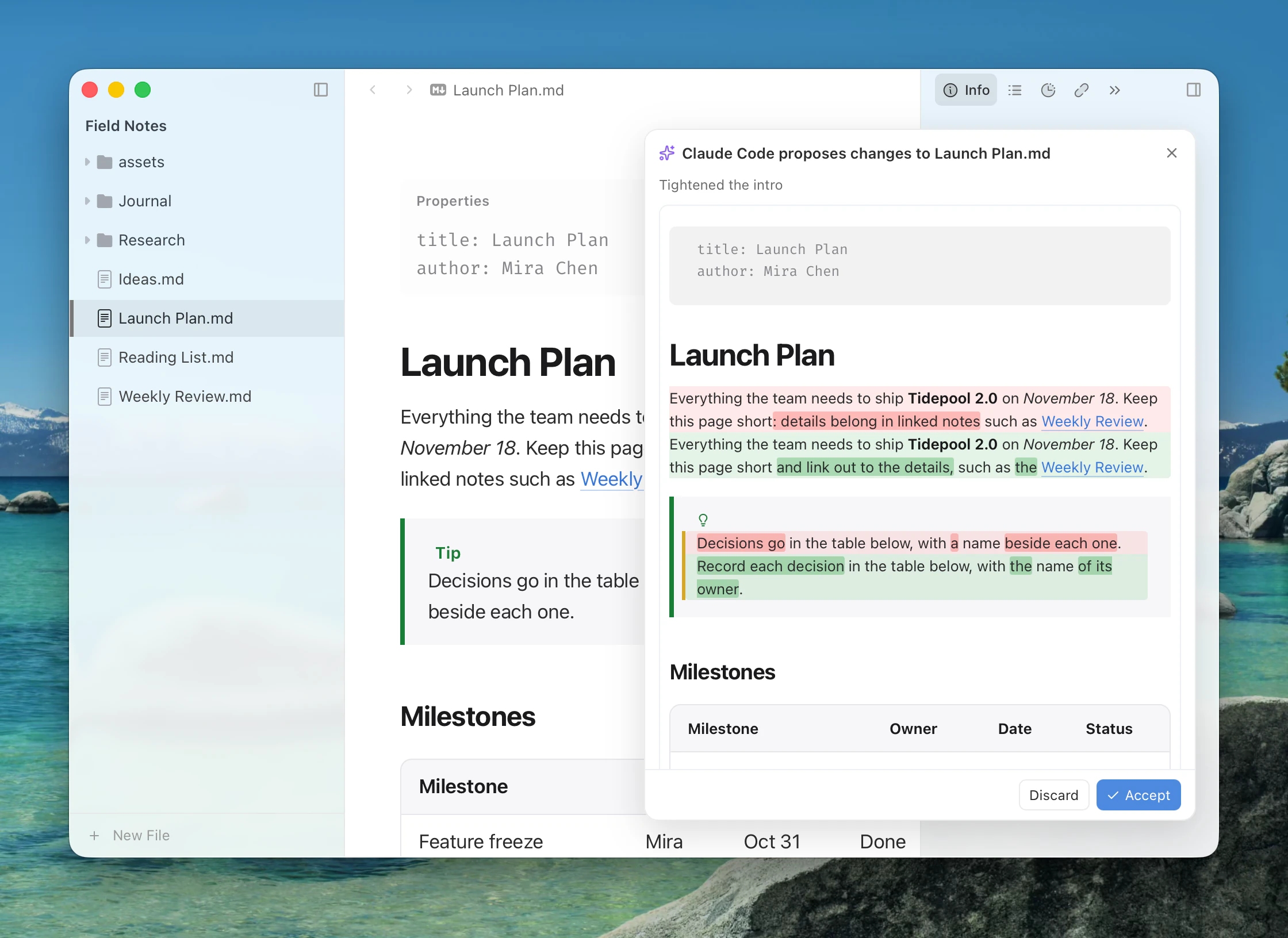
An accepted image is then filed the way your image settings say.
The command prints accepted n/m, partial n/m, rejected or unchanged, followed by the new revision. It exits with 0 when something was accepted or there was nothing to do, 1 when rejected or refused, and 3 when an old text didn't match exactly once.
MCP
typora mcp is an MCP server on standard input and output. It gives an agent Typora's tools, such as opening documents, running commands and reading the web, and offers your skills as prompts. Add it to your agent's MCP servers:
json
{
  "mcpServers": {
    "typora": { "command": "typora", "args": ["mcp"] }
  }
}
On macOS, Typora.app/Contents/MacOS/Typora mcp works too, if you haven't installed the command line tool.
Typora starts if it isn't running, and it stays in the background while the agent works. A card in the corner of the window shows what the agent is doing and asks your permission for anything lasting.
Only programs running as your user can reach Typora; there is no network port.