
Appearance
Command Palette
The command palette runs any command without the mouse. Press ⌘ShiftP on macOS or Ctrl+Shift+P on Windows and Linux, or choose View ▸ Command Palette….
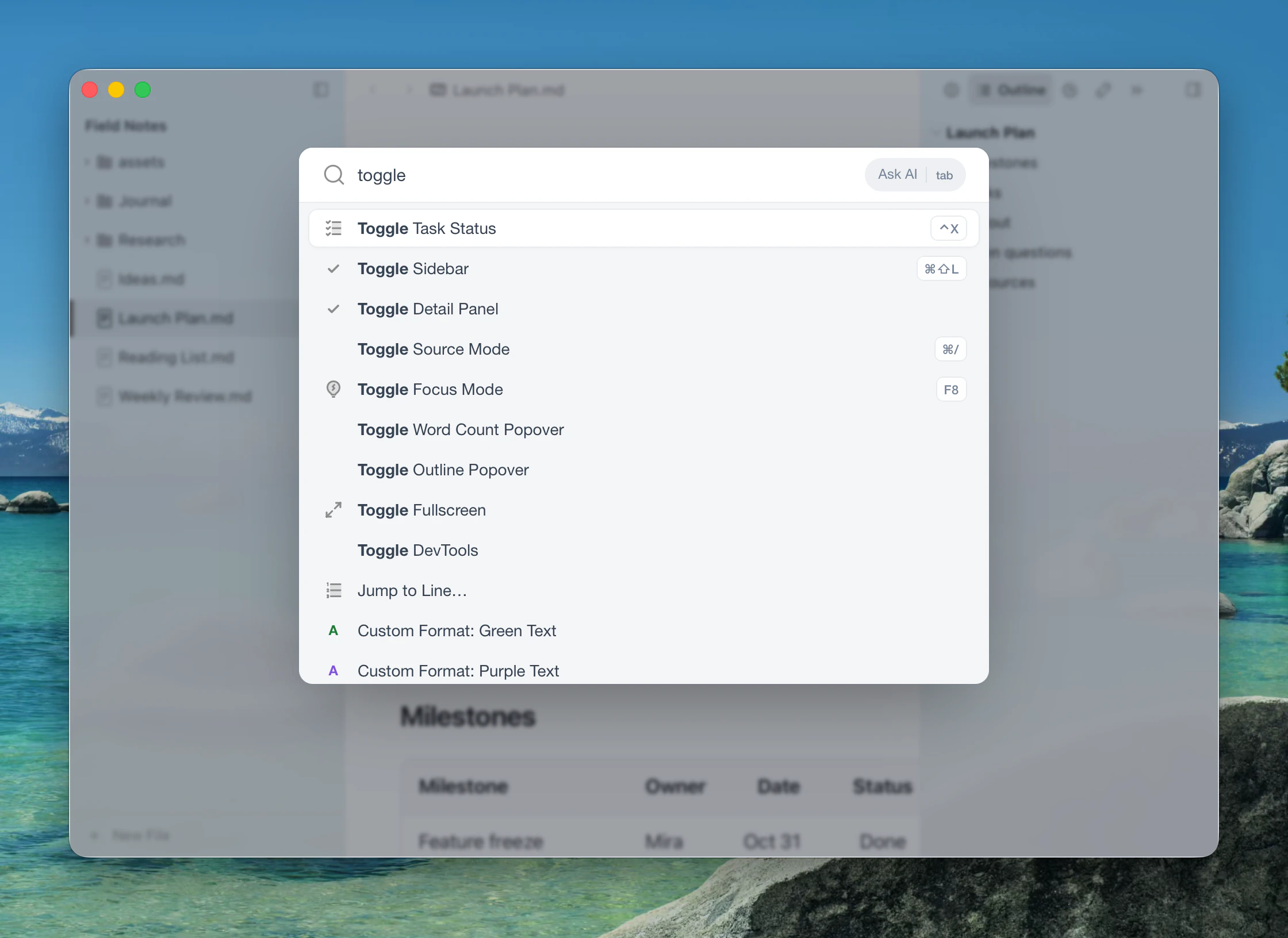
Type part of a command's name, press ↑ and ↓ to choose, and Enter to run it. Esc closes the palette.
It lists every command that is available right now: the menu commands, your templates, snippets and custom formats, and commands from extensions. Commands that can't run at the moment are left out. A check mark shows what is already on, and the shortcut sits at the end of the row.
In a translated interface, English names work too, and matching commands show their English name beside the translated one. In Chinese, commands also answer to their pinyin.
Jump to a line
Type : and a line number. The document scrolls there as you type; Enter stays, Esc goes back to where you were.
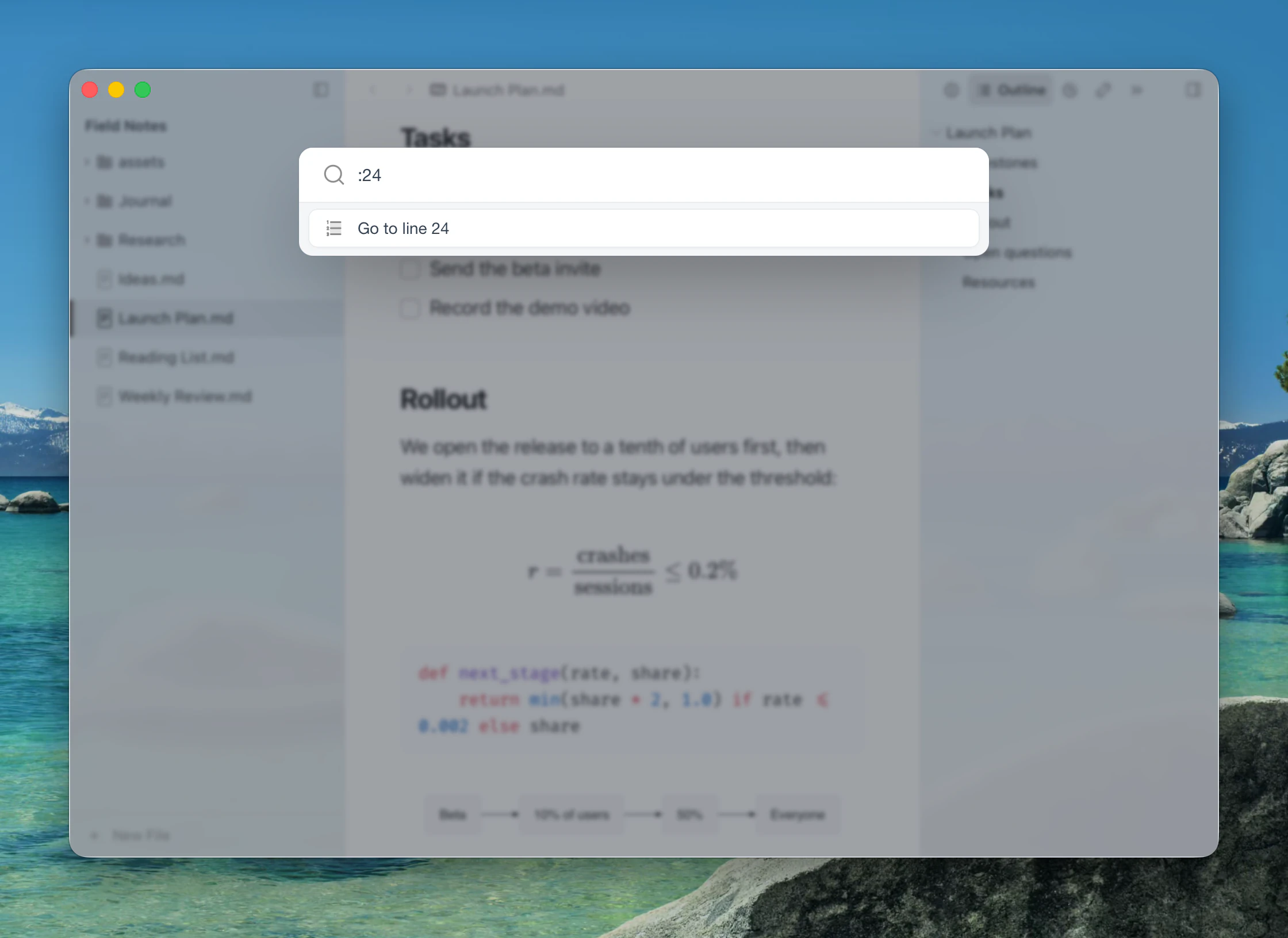
| Type | Goes to |
|---|---|
:12 | Line 12 |
:12:5 or :12,5 | Line 12, column 5 |
Lines are counted in the Markdown source. Edit ▸ Selection ▸ Jump to Line… opens the same prompt.
Change the theme
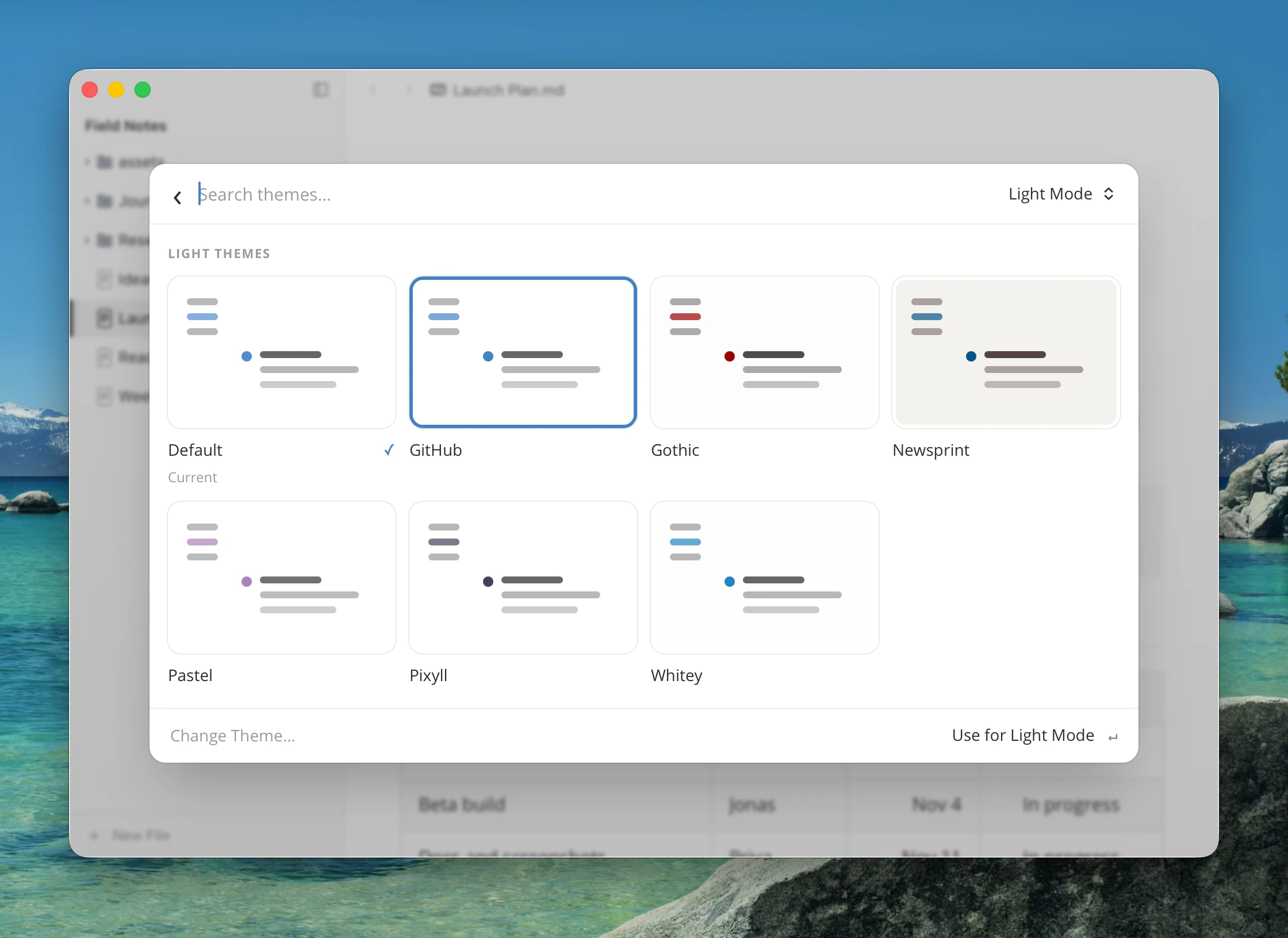
Choose Change Theme… to browse themes in the palette. Moving through the list previews each theme on your document, and Enter applies it. The menu at the top chooses whether you are setting the theme for light or dark mode.
Ask AI
Type a question and press Tab, or click Ask AI, to send it to AI.
To find files and headings rather than commands, use Open Quickly.
The context menu
The editor's right-click menu has a search box too: start typing as soon as it opens to filter its commands. Esc clears what you typed, then closes the menu.